
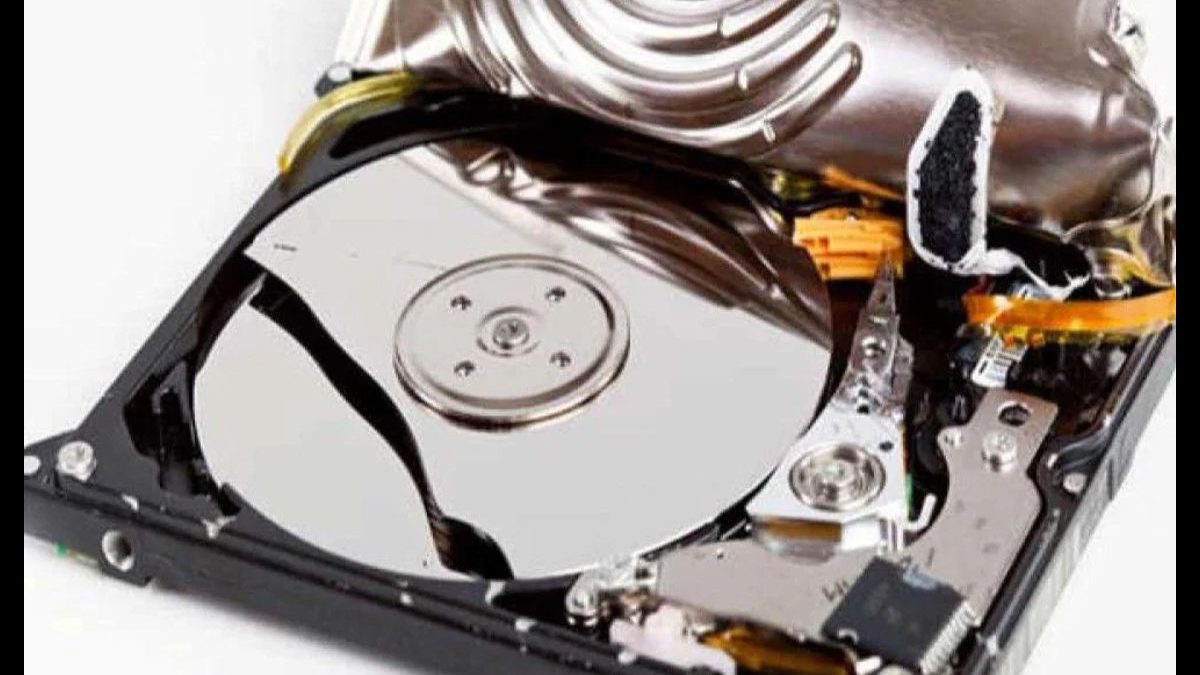
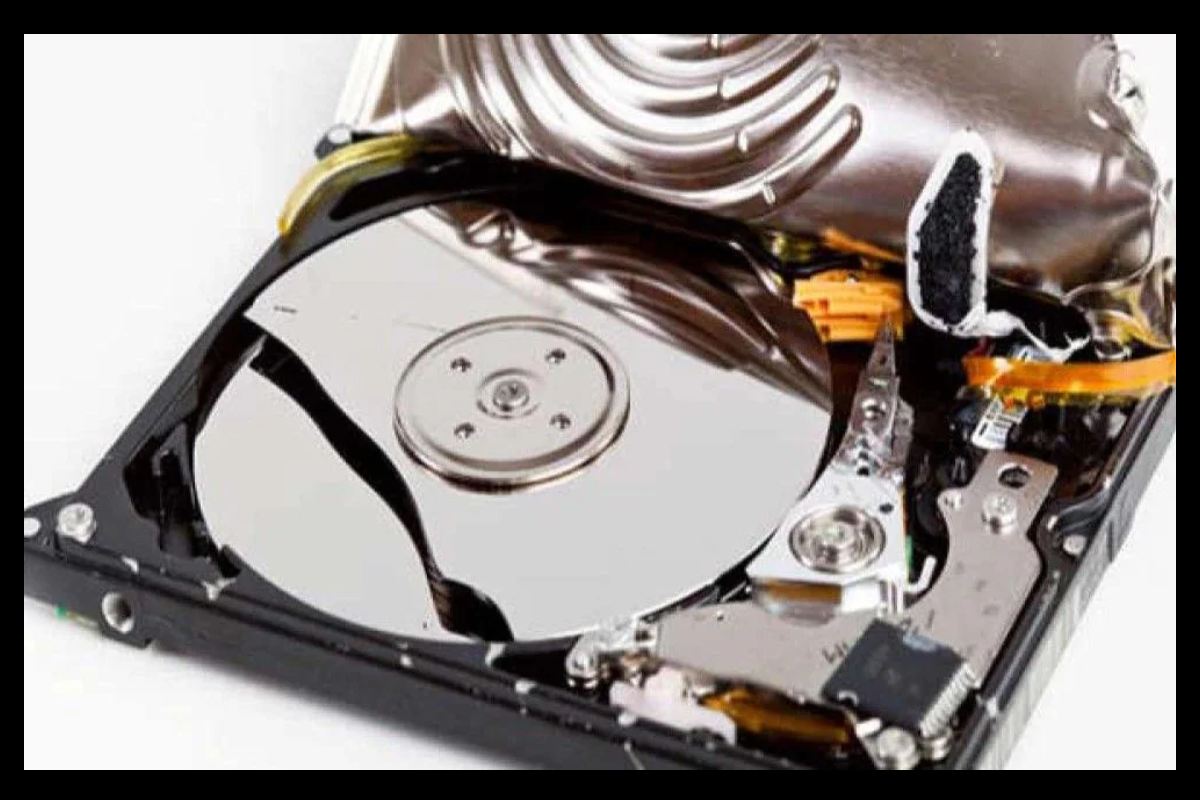
A hard drive failure happens when your computer’s storage device stops working properly. This can cause slow performance, strange noises, corrupted files, or even complete data loss.
Common warning signs include:
- Clicking or grinding noises
- Very slow performance
- Frequent crashes (Blue Screen of Death – BSOD)
- Corrupted or unreadable files
Hard drive failures are usually caused by mechanical wear, physical damage, overheating, or power surges. When you notice these signs, the most important step is to immediately back up your data and stop using the drive to prevent permanent loss.
Now let’s understand everything step by step.
Table of Contents
Types of Hard Drives
| Type | Description | Failure Risk | Speed | Used In |
| HDD (Hard Disk Drive) | Mechanical spinning disk | Higher | Moderate | Older laptops/desktops |
| SSD (Solid State Drive) | No moving parts | Lower | Fast | Modern laptops |
| External HDD | Portable mechanical drive | Moderate | Moderate | Backup storage |
| External SSD | Portable solid-state | Low | Very Fast | Professional backup |
Common Symptoms of Hard Drive Failure
| Symptom | What It Means | Severity |
| Clicking/Grinding Noise | Mechanical damage inside disk | High |
| Slow Boot Time | The drive is struggling to read data | Medium |
| Frequent Crashes (BSOD) | The system cannot access files | High |
| Corrupted Files | Data sectors damaged | Medium |
| Files Not Opening | Bad sectors | Medium |
| Drive Not Detected | Hardware failure | Very High |
Causes of Hard Drive Failures
| Cause | Explanation | Prevention |
| Mechanical Wear | Parts wear out over time | Replace after 4–5 years |
| Physical Impact | Dropping laptop | Use shock protection |
| Power Surges | Sudden voltage spike | Use UPS/surge protector |
| Overheating | Poor ventilation | Clean fan & airflow |
| Malware | Corrupts data | Use an antivirus. |
| Manufacturing Defect | Faulty hardware | Warranty replacement |
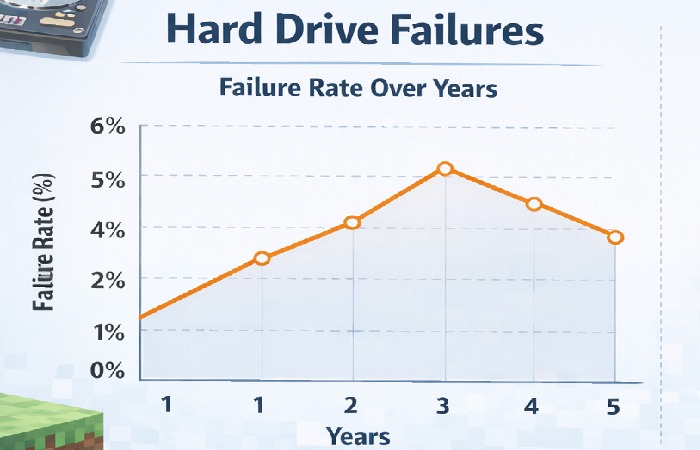
Hard Drive Failure Rate vs Years of Usage
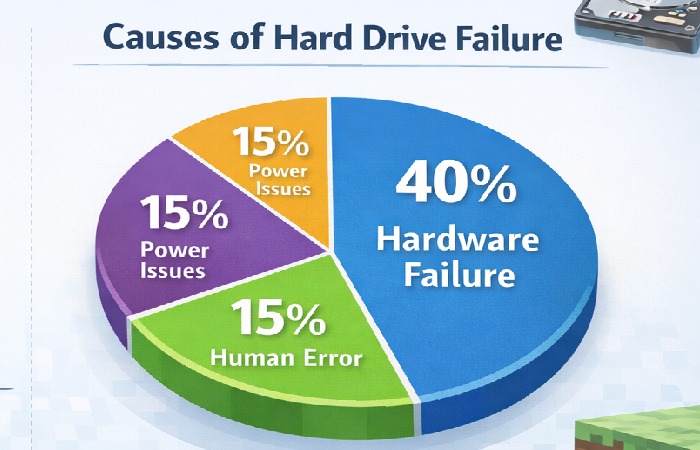
Main Causes of HDD Failure
Small vs Big Hard Drive Problems
| Problem Type | Example | Can It Be Fixed? | Solution |
| Small Problem | Slow speed | Yes | Disk cleanup |
| Minor Bad Sectors | Few corrupted files | Sometimes | CHKDSK |
| File System Error | Drive unreadable | Yes | Repair tool |
| Mechanical Failure | Clicking noise | Rarely | Data recovery service |
| Completely Dead Drive | Not detected | No (DIY) | Professional recovery |
How to Check Hard Drive Health
| Method | Steps | Difficulty |
| CHKDSK Command | Command Prompt → chkdsk /f | Easy |
| Windows Error Checking | Right-click drive → Properties → Tools | Very Easy |
| SMART Status | BIOS/third-party tools | Medium |
| Disk Management | Check partitions | Easy |
HDD Testing Software
| Software | Free/Paid | Best For | Difficulty |
| CrystalDiskInfo | Free | SMART health check | Easy |
| HDDScan | Free | Surface testing | Medium |
| HD Tune | Free/Paid | Performance test | Easy |
| SeaTools | Free | Seagate drives | Easy |
| EaseUS Partition Master | Paid | Repair & recovery | Easy |
Internal vs External Hard Drive Failures
| Feature | Internal Drive | External Drive |
| Installed In | Laptop/Desktop | USB device |
| Failure Causes | Heat, age | Physical damage |
| Recovery Difficulty | Hard | Slightly easier |
| Backup Importance | Critical | Usually backup device |
Different Windows Versions & HDD Checking
| Windows Version | Built-in Tool | Command |
| Windows 7 | Error Checking | chkdsk |
| Windows 10 | Drive Optimization | chkdsk /f |
| Windows 11 | Security & Maintenance | chkdsk /r |
How to Fix Hard Drive Issues
| Step | Action | Why |
| 1 | Stop using drive | Prevent data overwrite |
| 2 | Backup important files | Protect data |
| 3 | Run CHKDSK | Fix file system |
| 4 | Check SMART status | Detect hardware issue |
| 5 | Replace drive if needed | Long-term solution |
Data Recovery Options
| Situation | Recovery Method | Success Rate |
| Deleted Files | Recovery software | High |
| Corrupted Drive | Repair tool | Medium |
| Physical Damage | Professional lab | Depends |
| Not Detected | PCB replacement | Low–Medium |
Best Hard Drives Comparison
| Brand | Reliability | Best For |
| Western Digital | High | General use |
| Seagate | Good | Large storage |
| Samsung (SSD) | Very High | Performance |
| Kingston (SSD) | Good | Budget SSD |
Different Laptop Brands & HDD Issues
| Brand | Common Issue |
| HP | Overheating |
| Dell | Aging HDD slowdown |
| Lenovo | Sudden bad sectors |
| Acer | Impact-related damage |
FAQs
- What is the first sign of hard drive failure?
Strange clicking or grinding noises.
- Can a failing HDD be repaired?
Logical errors can be fixed, mechanical failures usually cannot.
- Is there free software to test HDD health?
Yes, CrystalDiskInfo and HDDScan are free.
- How long does a hard drive last?
Usually 3–5 years for HDDs.
- What should I do if my drive is failing?
Immediately back up data and stop using it.
Conclusion
Hard drive failures can happen gradually or suddenly, and recognizing early warning signs is crucial to protecting your data. Symptoms like unusual noises, slow performance, crashes, and corrupted files often indicate serious problems. While minor software issues can sometimes be repaired using built-in tools or free diagnostic software, mechanical damage usually requires professional recovery or drive replacement.
Regular backups, proper ventilation, and surge protection can significantly reduce the risk of failure. Understanding how to check hard drive health and act quickly can save important files and prevent permanent data loss.